


A tour of the client area dashboard
The client area menus: services, invoices, tickets, account, new order and notifications.
The dashboard is the first page you see after signing in. It sums up the state of your account and gives access to every section.
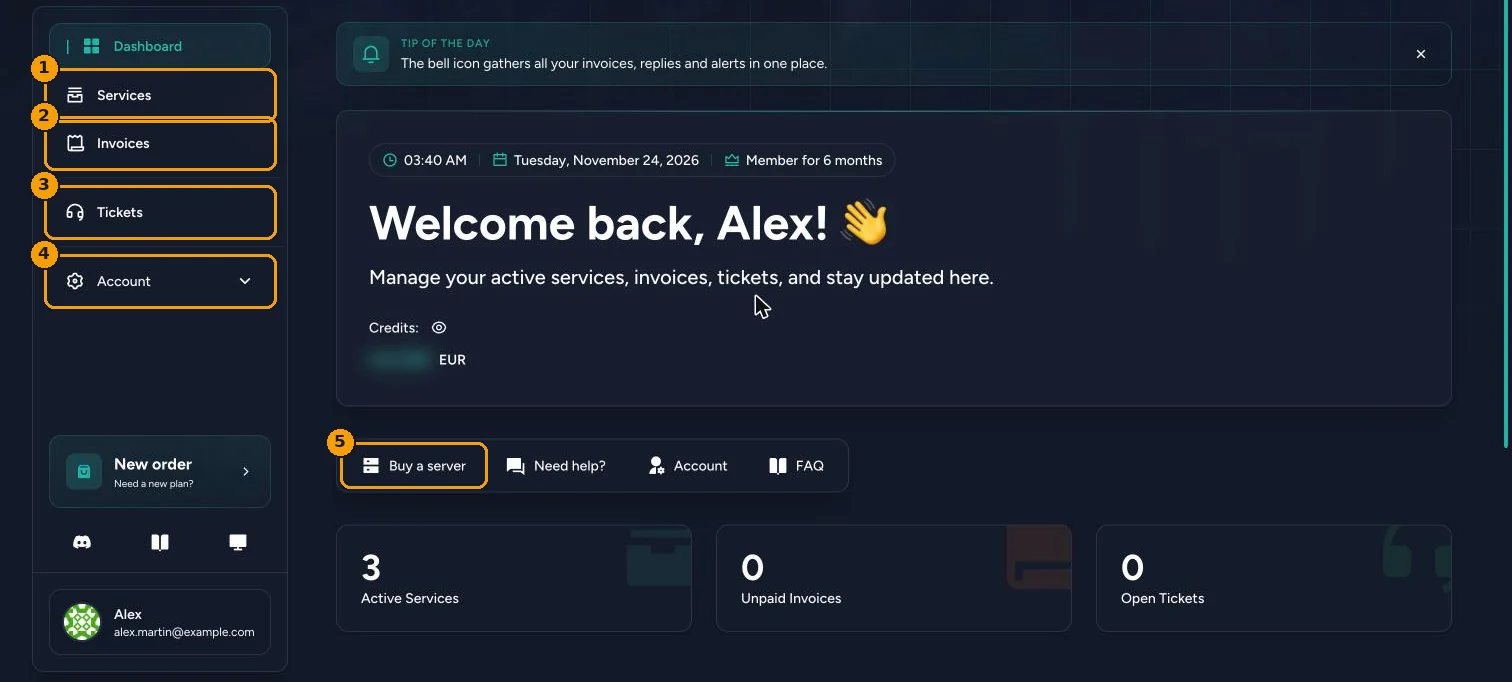
The menu sections
| Section | What it is for |
|---|---|
| Services | The list of your servers, with their status (active, suspended, cancelled…), their price and their due date. |
| Invoices | All your invoices, paid or still due, downloadable as PDF. |
| Tickets | Your requests to support and the replies. |
| Account | Personal details, security (password, two-factor authentication), payment methods and notifications. |
| New order | Opens the Koinswift website so you can choose a new server. |
What the dashboard shows
- Counters: number of active services, unpaid invoices and open tickets.
- Credits: your account’s credit balance, if any. It is hidden by default; click the eye icon to show it. Credit can be used to pay an invoice.
- Shortcuts: Buy a server, Need help? (Discord), Account and FAQ.
- Bell (top right): your notifications (invoice issued, server ready, ticket reply…).
- Flag and theme icon: the client area language and the switch between light and dark themes.
At the bottom of the menu, three icons open the Koinswift Discord, the FAQ and the server management panel.
Need a hand?
The Koinswift team answers 7 days a week, by ticket from your client area or on Discord.