


Change your password and check your sessions
Change your client area password and check which devices are signed in to your account.
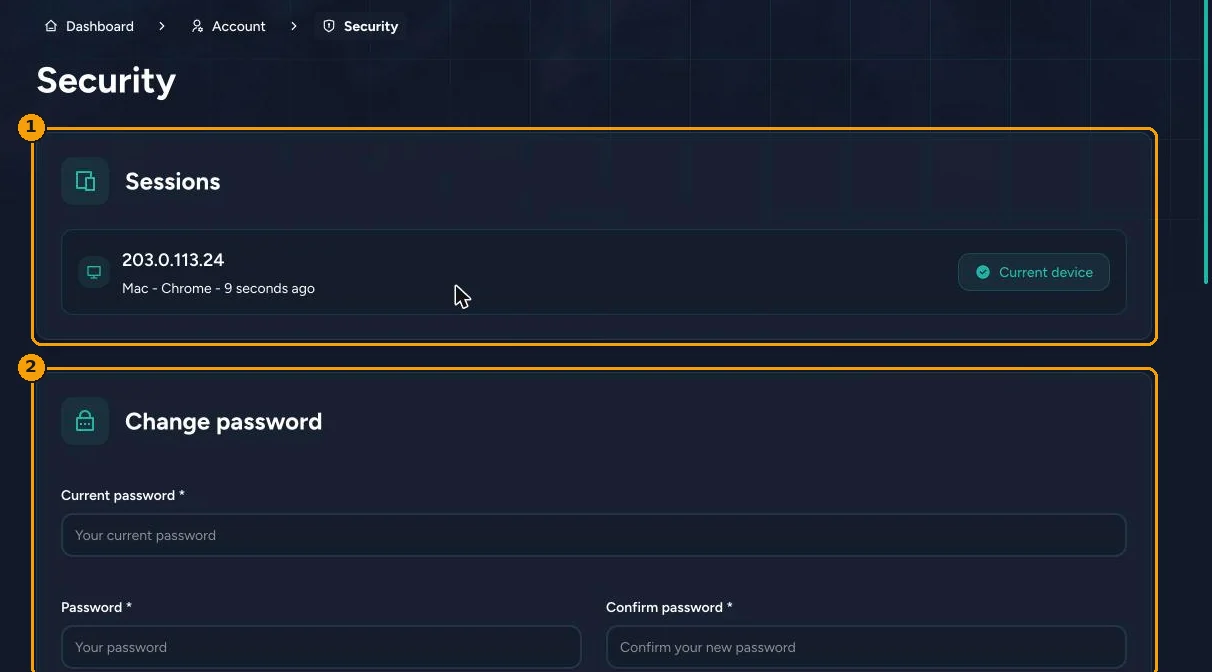
The Account → Security page brings together everything that protects access to your account.
Check your sessions
A session is a sign-in opened from a device. The list shows the IP address, the operating system and browser, and the last activity. The Current device label marks the computer or phone you are using right now.
If you see a session you do not recognise, change your password straight away and enable two-factor authentication.
Change your password
- Enter your current password
Field Current password.
- Choose the new password
Type it in Password, then again in Confirm password.
- Confirm
Click Change password.
Choose a long password (12 characters or more) that you do not use anywhere else. A password manager saves you from having to remember it.
This password is the one for the client area. The server management panel opens from the client area, with no password to enter. For file transfers, the panel provides a separate SFTP password: see Connect over SFTP with your panel credentials.
Need a hand?
The Koinswift team answers 7 days a week, by ticket from your client area or on Discord.