


Enable two-factor authentication (2FA)
Protect your account with a one-time code generated by an authenticator app.
Two-factor authentication (often called 2FA) adds a second check when you sign in: on top of your password, you enter a 6-digit code that changes every 30 seconds. Even if someone finds out your password, they cannot sign in without your phone.
What you need
An authenticator app on your phone, for example Google Authenticator, Microsoft Authenticator, 2FAS, or the code feature of your password manager.
Enable 2FA
- Open Account → Security
Scroll down to the Two-factor authentication block.
- Start the setup
Click the button in that block. A QR code is displayed.
- Scan the QR code
In your authenticator app, add an account by scanning the QR code.
- Confirm with a code
Enter the 6-digit code shown by the app to finish the setup.
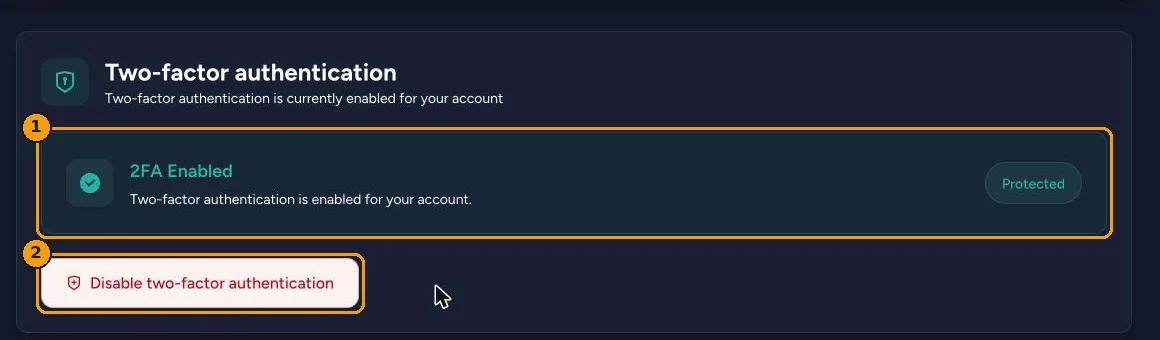
If you change phones, transfer your authenticator accounts first or disable 2FA before resetting the old device. Without the code you can no longer sign in and will have to contact support.
Need a hand?
The Koinswift team answers 7 days a week, by ticket from your client area or on Discord.