


Understand CPU, memory and disk usage
Read the panel’s CPU, memory and disk figures, know what happens at the limit and how to free up space.
Each plan sets three limits: computing power (CPU, the processor), memory (RAM) and disk space. The panel shows their usage live.
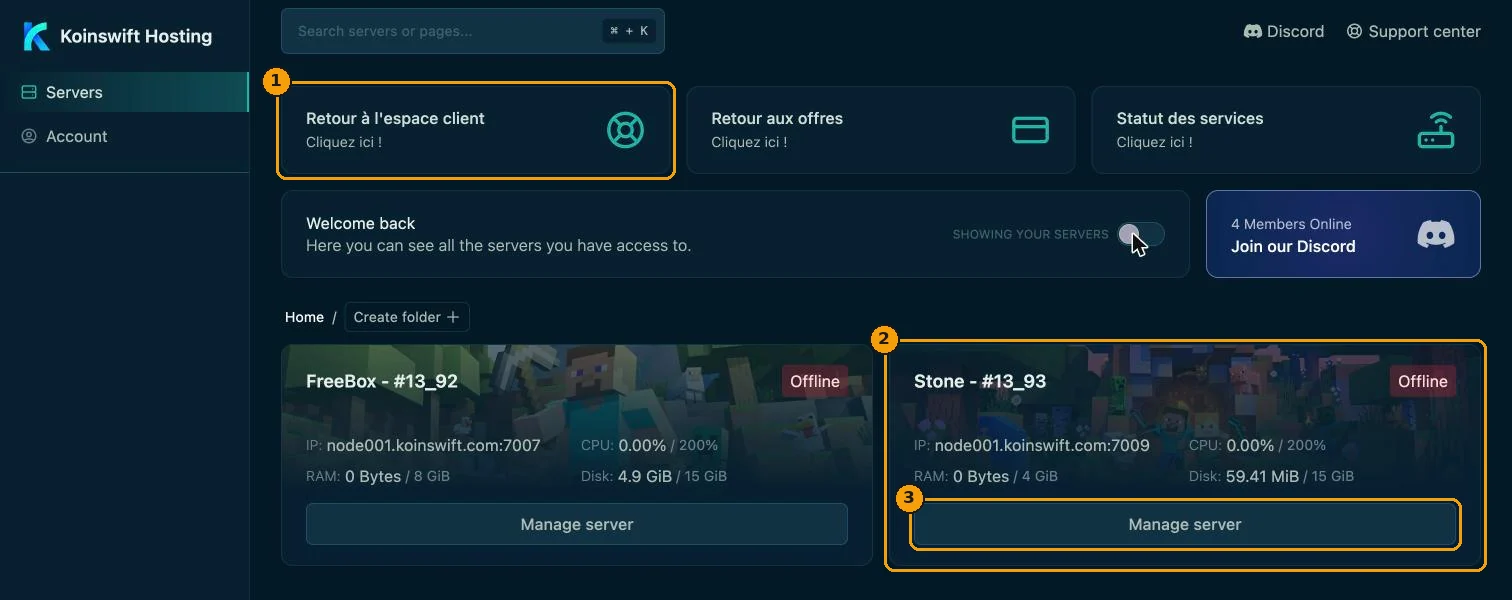
Reading the figures
| Indicator | What it means | Example |
|---|---|---|
| CPU | Processor usage. 100% equals one full core: a 200% limit gives the equivalent of two cores. | 85% / 200%: a bit less than one core used out of two. |
| Memory | RAM used by the game, out of your plan’s amount. | 3.2 GiB / 4 GiB |
| Disk | Space taken by the server’s files (game, world, logs, archives). | 12 GiB / 15 GiB |
The server dashboard also shows CPU and memory graphs over the last few minutes.
What happens at the limit?
| Limit reached | Effect | What to do |
|---|---|---|
| CPU | The server slows down (lag) but keeps running. | Lighten the game: first steps against lag. |
| Memory | The game may crash or stop, often during a peak of activity. | Remove heavy mods or plugins, restart regularly, or move to a plan with more memory. |
| Disk | The game can no longer save and may refuse to start. | Free up space (below) or move to a higher plan. |
Freeing up disk space
- Delete old logs in the
logsfolder and crash reports (crash-reportson Minecraft). - Delete
.zipor.tar.gzarchives you have already extracted. - Delete old copies of worlds you no longer use, after downloading them if needed.
- Empty the file manager’s trash: deleted items stay there for a few days.
If your server keeps hitting a limit despite these settings, an upgrade keeps your files and applies immediately.
Need a hand?
The Koinswift team answers 7 days a week, by ticket from your client area or on Discord.