


Add an SSH key to the panel and connect over SFTP
Register your public key in the panel, then use it in FileZilla or WinSCP.
- Open Account → SSH Keys
In the panel menu, click Account, then the SSH Keys tab.
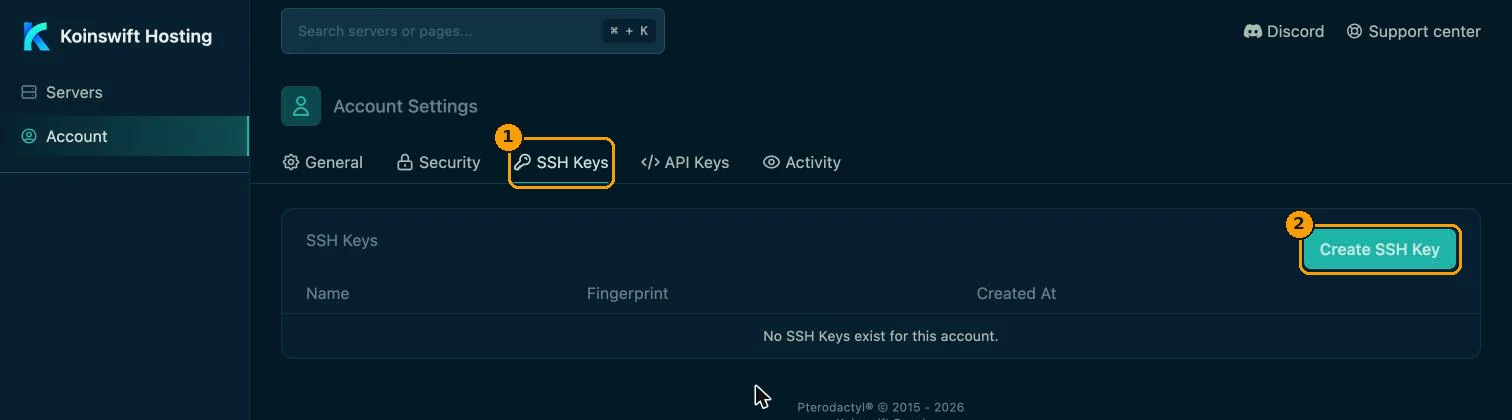
SSH Keys tab (1) and Create SSH Key button (2). - Click “Create SSH Key”
Give the key a name (for example your computer’s name).
- Paste the public key
Paste the
ssh-ed25519 …line into Public Key, or use Upload key file to pick the.pubfile.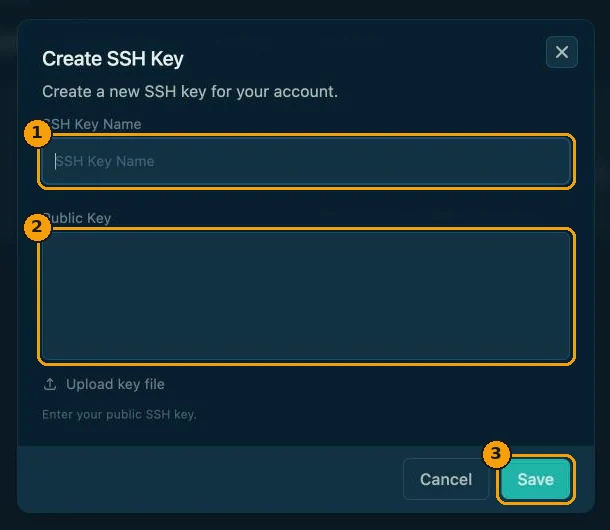
Key name (1), public key (2), Save (3). - Save
The key appears in the list with its fingerprint.
Connect with the key
- FileZilla: in the Site Manager, SFTP protocol, port 2022, logon type Key file, then choose your private key (FileZilla offers to convert it if needed).
- WinSCP: SFTP protocol, port 2022, then Advanced → SSH → Authentication → Private key file.
- The host and username are those shown in the server’s SFTP Details block.
Need a hand?
The Koinswift team answers 7 days a week, by ticket from your client area or on Discord.