


Connect over SFTP with your panel credentials
Find the SFTP address, username and password, and use them in FileZilla or WinSCP.
SFTP is a secure file transfer protocol. With software such as FileZilla (Windows, macOS, Linux) or WinSCP (Windows), you manage the server’s files like a folder on your computer. It is the best option for large transfers.
Find your credentials
They are shown in the SFTP Details block, on the server’s dashboard and under Settings.
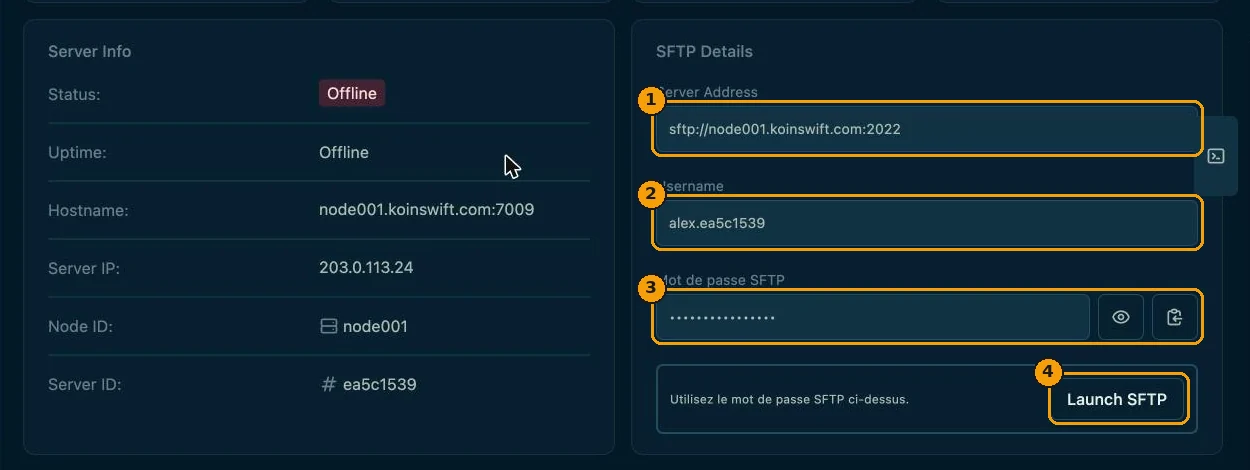
| Field | Value |
|---|---|
| Host | The address without sftp://, for example node001.koinswift.com. |
| Port | 2022 (the one shown after the colon). |
| User | The username shown, in the format name.id. |
| Password | The SFTP password (field labelled “Mot de passe SFTP”, currently shown in French): click the eye to show it or the copy icon to copy it. |
Set up FileZilla
- Open the Site Manager
Menu File → Site Manager → New site.
- Choose the SFTP protocol
Protocol: SFTP – SSH File Transfer Protocol.
- Fill in the fields
Host, port 2022, logon type Normal, user and password copied from the panel.
- Connect
On the first connection, accept the server’s fingerprint (it identifies the Koinswift machine).
The Launch SFTP button opens the address directly in the SFTP software associated on your computer, if there is one.
These credentials give full access to your files: do not share them.
Need a hand?
The Koinswift team answers 7 days a week, by ticket from your client area or on Discord.