


The panel home page and your server list
Server cards, shortcuts and folders on the panel home page.
The panel home page shows every server you have access to.
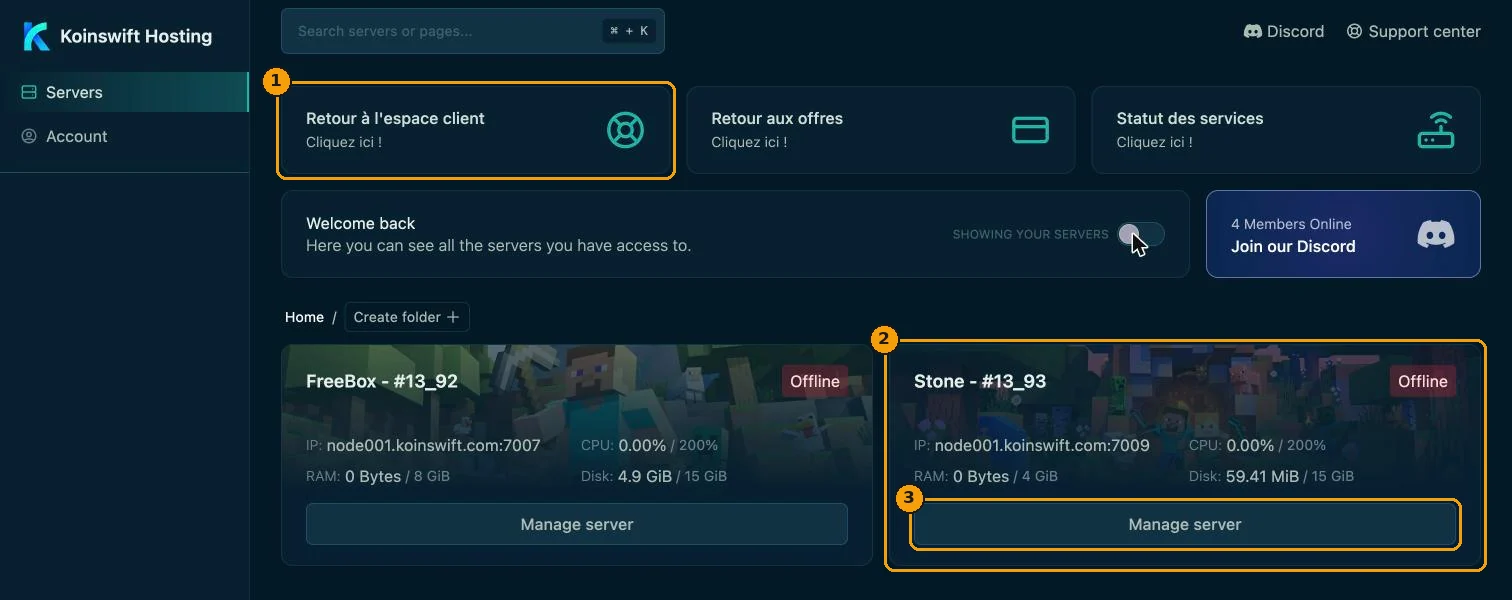
Reading a server card
- the server name and its state (Online or Offline);
- the connection address (IP and port);
- CPU, RAM and disk usage, with your plan’s limits;
- the Manage server button to open its management pages.
The shortcuts
The shortcut cards are currently displayed in French:
- Retour à l’espace client (back to the client area): return to the store (invoices, tickets…).
- Retour aux offres (back to the plans): order another server.
- Statut des services (service status): the live state of the infrastructure.
- The Discord card: the community and peer help.
Organise your servers
If you have several servers, Create folder creates a folder to group them (for example “Minecraft network”). The search bar at the top (shortcut Ctrl + K, or ⌘ + K on Mac) finds a server or a page by name.
Need a hand?
The Koinswift team answers 7 days a week, by ticket from your client area or on Discord.