A Minecraft Java server installed with Mojang’s official file can’t load plugins: no permission management, no area protection, no economy. Migrating a Minecraft server to Paper lifts this limit without changing the world, the game version or the connection address. This tutorial describes moving from a Vanilla server to Paper 26.2, the checks to do after the first startup, and how to roll back. Allow about fifteen minutes, not counting the backup time.
Versions covered: Minecraft Java Edition 26.2 (“Chaos Cubed”, released on June 16, 2026) and Paper 26.2, whose stable channel was checked on August 3, 2026. The principle also applies to 26.1 and later versions: only the numbers change.
What Paper changes on a Minecraft Java server
Paper is alternative server software to the one distributed by Mojang. It remains compatible with the official Minecraft client: players connect as before, with the same game version and the same address.
Three concrete differences after the switch:
- Paper loads plugins, i.e. extensions installed only on the server side. Players have nothing to install on their end.
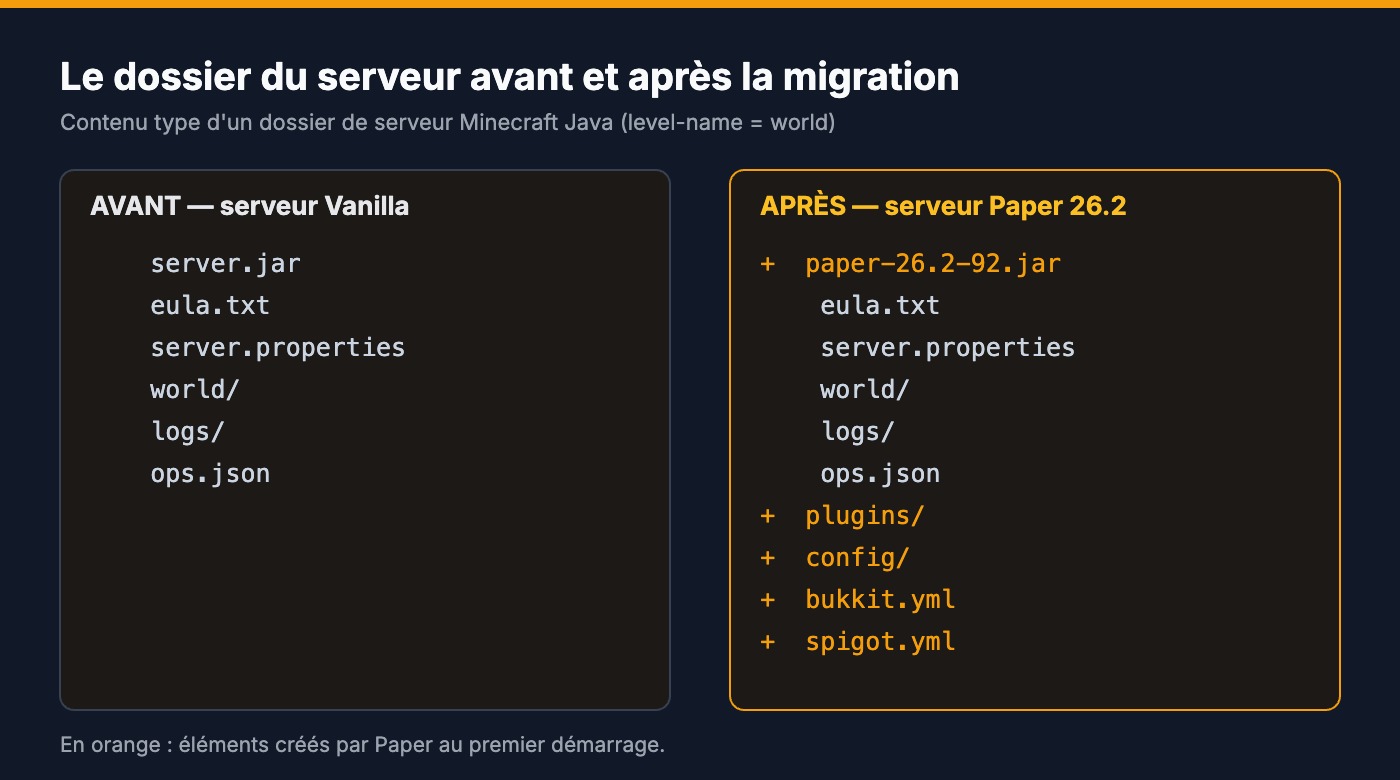
- It creates additional configuration files at the server root, in addition to
server.properties. - It doesn’t load Forge or Fabric mods. If your server uses them, the blocks and items added by these mods will no longer be recognized.
Important: since version 26.1, the official documentation states that world conversion is handled automatically by Paper on first startup. No folder manipulation is required in this migration direction.
Java 25 and a backup: the two blocking prerequisites
Paper 26.1 and later require Java 25 at minimum, according to the compatibility table published by PaperMC. Java is the runtime environment the server runs on: launched with an earlier version, the server stops within the first second.
To find the installed version, on the command line:
java -versionThe first line returned should show 25 or higher. On a hosting panel, the Java version is usually chosen in the server settings, next to the game version selection.
Warning — Paper rewrites the internal structure of the world folder from the first startup, and this conversion doesn’t undo itself. Copy the entire server folder, not just the world folder, to a separate location before continuing.
On a hosting panel, the backup feature produces a complete archive of the server. Download it to your own machine: a backup stored in the same place as the server only protects you from a wrong move, not from a failure.
Download the stable build of Paper 26.2
Server files are distributed from PaperMC’s downloads page. Select version 26.2, the one matching the game version your players use. Each version offers a list of numbered builds: a build is a dated compilation of the software, released several times a week. Click its number to start the download.
Checked on August 3, 2026: 26.2 moved to the stable channel from build #83, released on July 26, 2026, and the latest build offered is #92. Take the most recent build on the stable channel and note its number: it will help identify your installation precisely if there’s a problem. The resulting file has a name like paper-26.2-92.jar.
Replace the server file in four steps
Stop the server cleanly
Type stop in the console and wait for the process to end on its own. Don’t turn the machine off while it’s writing: an abrupt interruption while chunks are being saved can damage the world.
Upload the Paper file to the root
Upload paper-26.2-92.jar to the server’s root folder, the one that already contains server.properties and eula.txt. On a hosting panel, use the file manager. Don’t delete the old server file yet.
Match the file name with the startup command
The command that launches the server points to a specific file, often server.jar. Two options: rename the Paper file to that exact name, or change the command so it points to the new file. On Linux, case matters: Server.jar and server.jar are two different files.
Start and let the conversion happen
Restart the server and leave it alone. This first startup takes longer than the following ones: Paper converts the world and writes its configuration files.
If you manage the server yourself, the startup command recommended by PaperMC looks like this:
java -Xms4G -Xmx4G -jar server.jar --nogui-Xms and -Xmx set the memory allocated to the Java virtual machine; adjust these values to the RAM actually available on your server, without saturating it. --nogui disables the graphical window, useless when you run the server from a console. To choose a consistent value, see our RAM guide by number of players.
The listening port doesn’t change: it stays the one set by server-port in server.properties, i.e. 25565 by default. No additional port needs opening for this migration.
Three checks after the first startup
- In the server console, the
versioncommand should return a line mentioning Paper and the installed build number. - A
pluginsfolder should have appeared at the server root, alongside the new configuration files. - Log in to the game and go to the Nether then the End, to areas already explored before the migration. Your builds should be intact.
If one of these three checks fails, stop the server and restore the backup rather than attempting a live fix.
What most often blocks
The server stops immediately, with a message about an unsupported class file version: Java is too old, go back to the version check.
“Unable to access jarfile”: the name given in the startup command doesn’t match the file actually present.
The Nether or the End look new: the server doesn’t point to the right level-name, or the world folder wasn’t copied in full.
A plugin refuses to load: it doesn’t target 26.2. Its download page shows the supported versions.
Going back to Vanilla from Paper
The reverse operation isn’t automatic: it requires moving five files by hand, as the official migration guide states. With the server stopped, move game_rules.dat, scheduled_events.dat, wandering_trader.dat, weather.dat and world_gen_settings.dat from world/dimensions/minecraft/overworld/data/minecraft/ to world/data/minecraft/.
Then put the Vanilla server file back in place of the Paper file, and restart. Installed plugins will stop working, since a Vanilla server can’t load them.
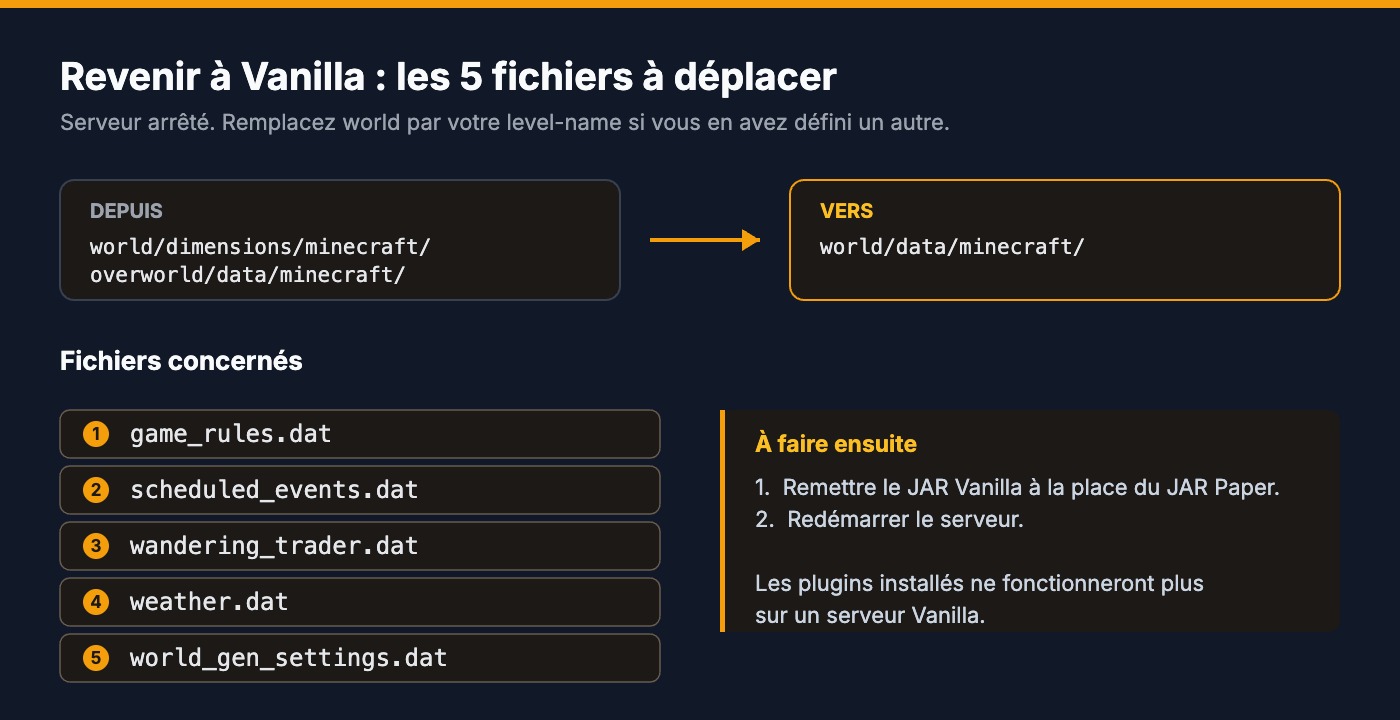
Note — These paths assume a level-name set to world in server.properties. If your world has another name, replace world with that name in each of the paths above.
Migrating to Paper requires a server where you can upload a file, adjust the startup command and restore a backup without waiting. Koinswift’s Minecraft Java plans give access to a file manager, version selection and built-in backups, on a secure, filtered network infrastructure, with support available 7 days a week. The Stone plan (4 GB of RAM, 1,79 € per month) is enough for a server among friends; the Iron plan (8 GB, 4,49 € per month) leaves more room as plugins pile up.
Further reading
- PaperMC migration guide — the reference procedure, in both directions, kept up to date by the project team.
- Getting started with a Paper server — Java compatibility table by version and recommended startup command.
- Paper downloads — available versions, build numbers and release channel.
- Setting up Geyser and Floodgate for crossplay — a plugin you can only install once on Paper, to welcome Bedrock players.