On a dedicated Palworld server, almost all game settings go through a single file: PalWorldSettings.ini. This tutorial shows where to place it, how to edit it without breaking its syntax and how to check that the server has actually taken your values. It follows the official dedicated server documentation for version 1.0.2 and covers both Windows and Linux.
At the end, your server restarts with the name, number of players and multipliers you chose. You’ll also learn to recognize the most common symptom: a modified file, but a world still running with the original settings. Allow about ten minutes, restart included.
Why your settings fall back to the original values
Three causes explain almost every case, and they’re all documented by the publisher.
The first: having edited DefaultPalWorldSettings.ini, the file shipped with the server. The official documentation is explicit: editing this file has no effect. It only serves as a template to copy.
The second: a badly formatted file. The server then ignores the whole block and applies the default values, with no explicit error message at startup.
The third traps new installations: the Pal/Saved/Config/ folders are only created after the server’s first startup. If the path doesn’t exist yet, launch the server once, stop it, then come back to this tutorial.
Prepare the file before touching it
Possible overwrite: if a PalWorldSettings.ini already exists, the copy command below replaces it and your current settings are lost. First duplicate it under another name, for example PalWorldSettings.ini.bak, in the same folder.
Stop the server cleanly
Settings are only read at startup. In game, with admin rights, /Shutdown 60 Restart warns players then shuts the server down after 60 seconds.
Put the existing file in a safe place
Copy the current configuration file under a backup name. If the world hasn’t been saved recently, do that too before going further.
Copy the template file
DefaultPalWorldSettings.ini is at the root of the PalServer folder. The copy must land in the Config folder matching your operating system.
Change the values, never the structure
Open the copy in a plain text editor and change only what’s between the parentheses.
On Windows, with the Steam client or SteamCMD
From PowerShell, in the installation folder:
Copy-Item steamapps\common\PalServer\DefaultPalWorldSettings.ini steamapps\common\PalServer\Pal\Saved\Config\WindowsServer\PalWorldSettings.ini
The file to edit next is steamapps\common\PalServer\Pal\Saved\Config\WindowsServer\PalWorldSettings.ini.
On Linux, with SteamCMD
cp steamapps/common/PalServer/DefaultPalWorldSettings.ini steamapps/common/PalServer/Pal/Saved/Config/LinuxServer/PalWorldSettings.ini
Here the folder is called LinuxServer, not WindowsServer. Case matters on Linux: one forgotten capital letter and the server won’t find the file, though it won’t refuse to start either.
The two-line format, never to be broken
The file has two useful lines. The first declares the section, the second contains all the settings in a single OptionSettings=(...) block.
Expected structure
[/Script/Pal.PalGameWorldSettings]
OptionSettings=(Difficulty=None,DayTimeSpeedRate=1.000000,ExpRate=1.500000,ServerName="My server",ServerPlayerMaxNum=12)
A parameter is a name=value pair, separated from the next by a comma. Everything must stay on a single line: a line break inside the parentheses invalidates the whole block, as documented by the Palworld community wiki. Numbers are written with a decimal point, yes/no values with True or False.
In practice, avoid any editor that automatically wraps long lines and keep the file as plain text.
The settings changed most often
The 1.0.2 documentation groups the parameters into four families. Here are the ones actually changed on a community server.
- Identity and access:
ServerName,ServerDescription,ServerPassword(password asked of players),AdminPassword(admin rights) andServerPlayerMaxNumfor the number of simultaneous players. - Game pace:
ExpRatefor experience,PalCaptureRatefor capture,CollectionDropRatefor gathering.DeathPenaltyaccepts four values:None,Item,ItemAndEquipmentandAll. - Bases:
BaseCampMaxNumInGuildsets the number of bases per guild (4 by default, 10 maximum) andBaseCampWorkerMaxNumthe number of Pals per base (50 maximum). - Backups and platforms:
bIsUseBackupSaveDataenables automatic world backups,CrossplayPlatformssets the allowed platforms, with(Steam,Xbox,PS5,Mac)by default.
A useful detail on bIsUseBackupSaveData: once enabled, the server creates a backup folder in the save folder and keeps 5 backups 30 seconds apart, 6 backups 10 minutes apart, 12 backups an hour apart and 7 backups a day apart.
Server load: BaseCampMaxNumInGuild, BaseCampWorkerMaxNum and PalSpawnNumRate increase processing load, and bIsUseBackupSaveData increases disk load. Sustainable values depend on the number of connected players, the number of bases and the build density of your world: no generic figure replaces a test on your own server.
The cap on ServerPlayerMaxNum remains limited by the number of players included in your hosting plan. On the Koinswift Panel, the file manager lets you open PalWorldSettings.ini directly from the browser, and backups are triggered from the same interface.
Restart to apply the changes
Save the file, then restart the server. On Windows with the Steam client, launching goes through the dialog offering to start Palworld Dedicated Server. On Linux, run PalServer.sh again with the same options as before.
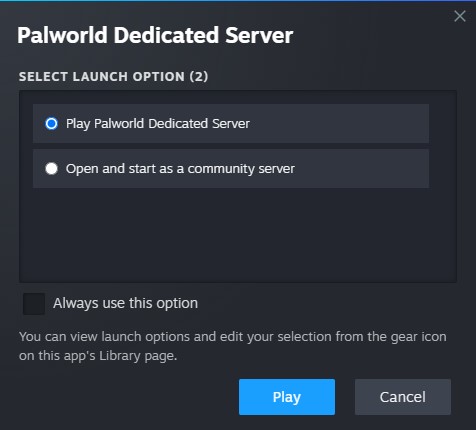
A point of order: admin commands only work if AdminPassword was set in the file before startup. Once connected in game, press Enter and type /AdminPassword followed by the chosen password to get the rights.
Check that the server has read your file
The fastest check is the server name, because it’s visible immediately and necessarily comes from the configuration file.
/Infoshows the server information, including the name you just set./ShowPlayerslists connected players and confirms that the limit applied matchesServerPlayerMaxNum./Saveforces the world data to be written, useful right after a settings change.
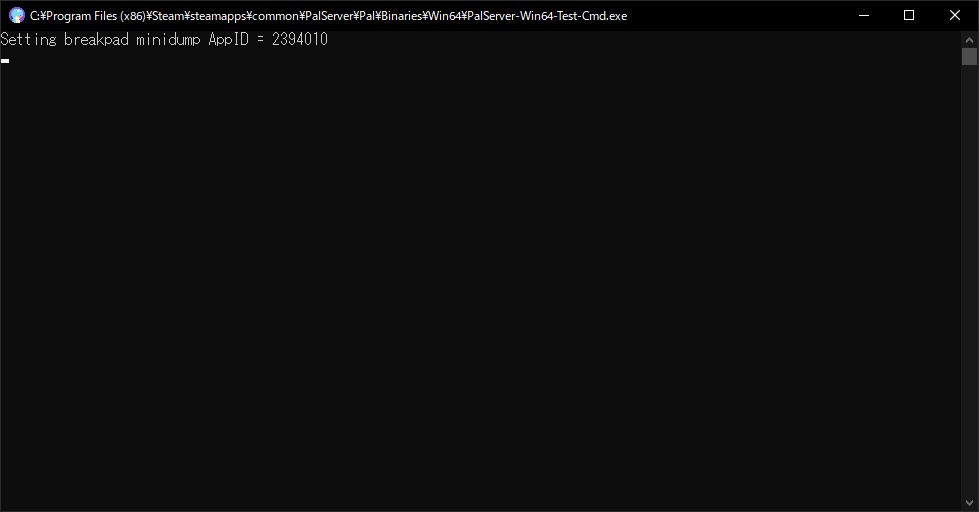
If the displayed name is still the one from the template file, or if the multipliers are obviously at 1, the server hasn’t read your configuration. Then go back over the three causes listed at the start of the article: wrong file, wrong folder, or broken format.
What’s set elsewhere, and how to roll back
Some settings don’t go through PalWorldSettings.ini but through the server’s launch options, entered in the Steam properties or on the command line.
-port=8211changes the server’s listening port.-players=32changes the maximum number of participants.-publiclobbydeclares the server as a community server.-publicip=and-publicport=only concern community servers. The documentation states that-publicportdoesn’t change the port the server actually listens on: it’s only used for what’s announced publicly.
A point often misrepresented by guides written before July 2026: for the options -useperfthreads -NoAsyncLoadingThread -UseMultithreadForDS, the official documentation states that from version 1.0, not setting these parameters may improve performance. That’s the opposite of the recommendation that used to circulate.
If something goes wrong, rolling back takes three steps: stop the server, replace PalWorldSettings.ini with the backup copy made in step 2, restart and check with /Info. Since the file doesn’t touch world data, this doesn’t lose any progress.
Further reading
- Dedicated server configuration parameters — the complete, up-to-date list of parameters, grouped by family, for version 1.0.2.
- Server launch options — everything that’s set on the command line rather than in the file.
- Admin commands — the official list of in-game commands, including
/Shutdownand/Info. - Backing up a Palworld server before an update — the full backup procedure, to do before any major change.
- What version 1.0 changed on the server side — the background to the July 2026 changes.