Backing up a Palworld server relies on three separate actions: automatic rotation handled by the server itself, the forced save you trigger on demand, and the copy stored somewhere other than the game machine. By the end of this tutorial, all three will be in place and you’ll be able to run an update, add a mod or change settings with a dated restore point.
The procedure applies to a Palworld dedicated server on version 1.0 or later, on Windows as on Linux. It’s based on Pocketpair’s official server guide, version 1.0.2, checked on August 1st, 2026. Allow about fifteen minutes, including the server restart. No system commands are needed: everything happens in a text file and two commands typed from the game.
Three levels of protection for a Palworld world
The first level is automatic rotation. A rotation is a set of successive copies whose oldest ones are deleted as you go. Palworld enables it via the bIsUseBackupSaveData parameter: when enabled, the server creates a backup folder inside the save data folder. The official documentation details the schedule used: 5 copies every 30 seconds, 6 copies every 10 minutes, 12 copies every hour and 7 copies every 24 hours.
The second level is the forced save. The /Save command immediately writes the world data to disk. It’s the move to make just before a risky operation, because it gives you a restore point you chose, not a copy that happened to fall out of the rotation.
The third level is the off-server copy. Rotation copies live in the server’s data folder, so on the same machine as the original world. A regular download to your computer, via your hosting panel’s file manager, is the only level that survives a hardware incident.
Where to find PalWorldSettings.ini
PalWorldSettings.ini is the text file containing your dedicated server’s settings. Its location depends on the system, and the official documentation points out an important detail: the folders are only created once the server has been started at least once. On a fresh install, start the server, stop it, then look for the file.
Windows (Steam or SteamCMD)
steamapps\common\PalServer\Pal\Saved\Config\WindowsServer\PalWorldSettings.ini
Linux (SteamCMD)
steamapps/common/PalServer/Pal/Saved/Config/LinuxServer/PalWorldSettings.ini
Two pitfalls come up often. First, a DefaultPalWorldSettings.ini file exists at the root of PalServer: editing it has no effect, as the documentation explicitly points out. Next, the same documentation suggests copying this default file to PalWorldSettings.ini to start from a clean base.
Warning: this copy completely overwrites an existing PalWorldSettings.ini, with all your game settings. Only do it if the file is missing. In all other cases, first duplicate the existing file as PalWorldSettings.ini.bak: that will be your fallback.
Set bIsUseBackupSaveData to True
Duplicate the configuration file
From the file manager or your SFTP client, copy PalWorldSettings.ini to PalWorldSettings.ini.bak in the same folder. The server doesn’t read this copy: it’s only there to roll back if the edit goes wrong.
Change the parameter’s value
Open PalWorldSettings.ini, find bIsUseBackupSaveData among the parameters and change its value to True. Respect the exact case of the name and value, and don’t add spaces or quotes around the equals sign. If the parameter doesn’t appear, your file comes from an earlier version: start again from a copy of the default file, then carry your settings over one by one.
Restart the server
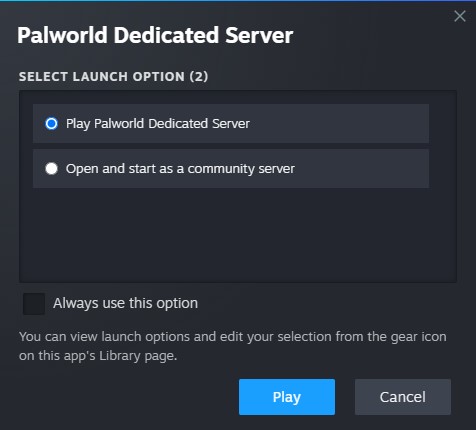
Save, then restart the server so the new setting takes effect: PalServer.exe on Windows, ./PalServer.sh on Linux. From a hosting panel, the restart button does the same job.
Force a save just before the operation
Server commands only work after authentication. The AdminPassword parameter must therefore be set in the configuration file beforehand. Once in game, press Enter to open command input, then run the following two lines in this order.
/AdminPassword your_password
/Save
The first line grants you admin privileges, the second writes the world data. If you’d rather automate this from a script, the server’s REST API exposes the same action: enable RESTAPIEnabled, choose the port with RESTAPIPort, then call the POST /save request with HTTP Basic authentication. The official documentation is clear on one point: these interfaces aren’t designed to be exposed directly to the Internet, and their use is recommended on a local network.
Stop the server without cutting off a write in progress
Once the forced save is done, don’t kill the process abruptly. Palworld provides a delayed shutdown that warns connected players: /Shutdown [Seconds] [Message]. For example, /Shutdown 60 Maintenance in progress leaves one minute before shutdown and shows the message to participants. The /DoExit command also exists, but it forces an immediate stop: keep it for a server that no longer responds.
This clean shutdown determines the next step. As long as the server is running, it can rewrite the world files at any time: never copy, move or replace a save folder on a running server. Wait until the process is actually off before downloading your off-server copy.
Check that the rotation is filling up
Restart the server and let it run for about fifteen minutes with at least one player connected. Then open the file manager and check that a folder named backup has appeared in the save data folder. This folder is proof that the parameter is active: the official documentation states it’s only created when bIsUseBackupSaveData is enabled.
Come back an hour later: the number of copies should have increased according to the documented schedule. If the folder is still missing, three causes cover almost every case. You edited DefaultPalWorldSettings.ini instead of the active file; the case of the parameter or value wasn’t respected; the server wasn’t restarted after saving. Go back to step 2, then step 3.
If the server refuses to start after your change, the fallback is immediate: delete PalWorldSettings.ini, rename PalWorldSettings.ini.bak to PalWorldSettings.ini and restart. You get back the exact configuration from before the change.
What these backups don’t cover
Automatic rotation protects against a wrong move, a crash or a failed update. It protects against nothing if the disk fails or the server folder is deleted, since the copies live there. The official documentation also notes that enabling the parameter increases disk load: on an already busy machine, the 30-second schedule has a cost you need to accept knowingly.
Two habits usefully complete the setup. Download a full copy of the data folder after each important session, and keep it on another medium. And keep a separate copy of your configuration files: they’re not part of the world data, but rebuilding them by hand after an incident often takes longer than restoring the game itself. The changes introduced by version 1.0 of the game are detailed in our overview of what’s new for Palworld 1.0 servers.
On a hosted server, these internal copies come on top of the panel’s backup slots, which live outside the game folder. Koinswift’s Palworld plans include 2 to 10 slots depending on the plan, from 4,49 € per month, with file manager, backups and version selection from the Koinswift Panel, on a secure, filtered network infrastructure.
Further reading
- Palworld server configuration parameters — the full list of
PalWorldSettings.inioptions and the details of the rotation schedule. - Official list of server commands — the exact syntax of
/Save,/Shutdownand/DoExit. - Introduction to the Palworld REST API — the starting point for scripting a scheduled backup without going through the game.
- Palworld 1.0 server: everything that changes — what to know before updating an existing world.