Find out how to view, change, upgrade or cancel your Koinswift subscription from your customer area, with a clear, illustrated step-by-step guide.
Quick summary
| 🎯 What you’ll learn | Accessing your customer area, finding your subscription, understanding your service page, changing plans, accessing the panel and cancelling a subscription properly. |
| 🌐 Where it all happens | From your Koinswift customer area, available at store.koinswift.com. |
| 👥 Who it’s for | All Koinswift customers, whether beginners or already used to managing a game server. |
| ⚠️ Important point | Cancelling a subscription doesn’t immediately delete the server: it remains active until the end of the period already billed. |
Context
When you host a server at Koinswift, it’s normal to need, at some point, to check your plan’s details, increase your server’s resources, access its admin panel or cancel the subscription if your project changes. All these actions are done directly from the Koinswift customer area, with no complicated procedure.
This tutorial was designed to guide you step by step through managing your subscription. It’s aimed at new users as well as more experienced players who want to quickly find the right menus and understand what each action concretely involves.
1. Accessing your Koinswift customer area
It all starts with the Koinswift customer area. This is the interface where you manage all your services: active subscriptions, invoices, support tickets and account information. To access it, go directly to the following address:
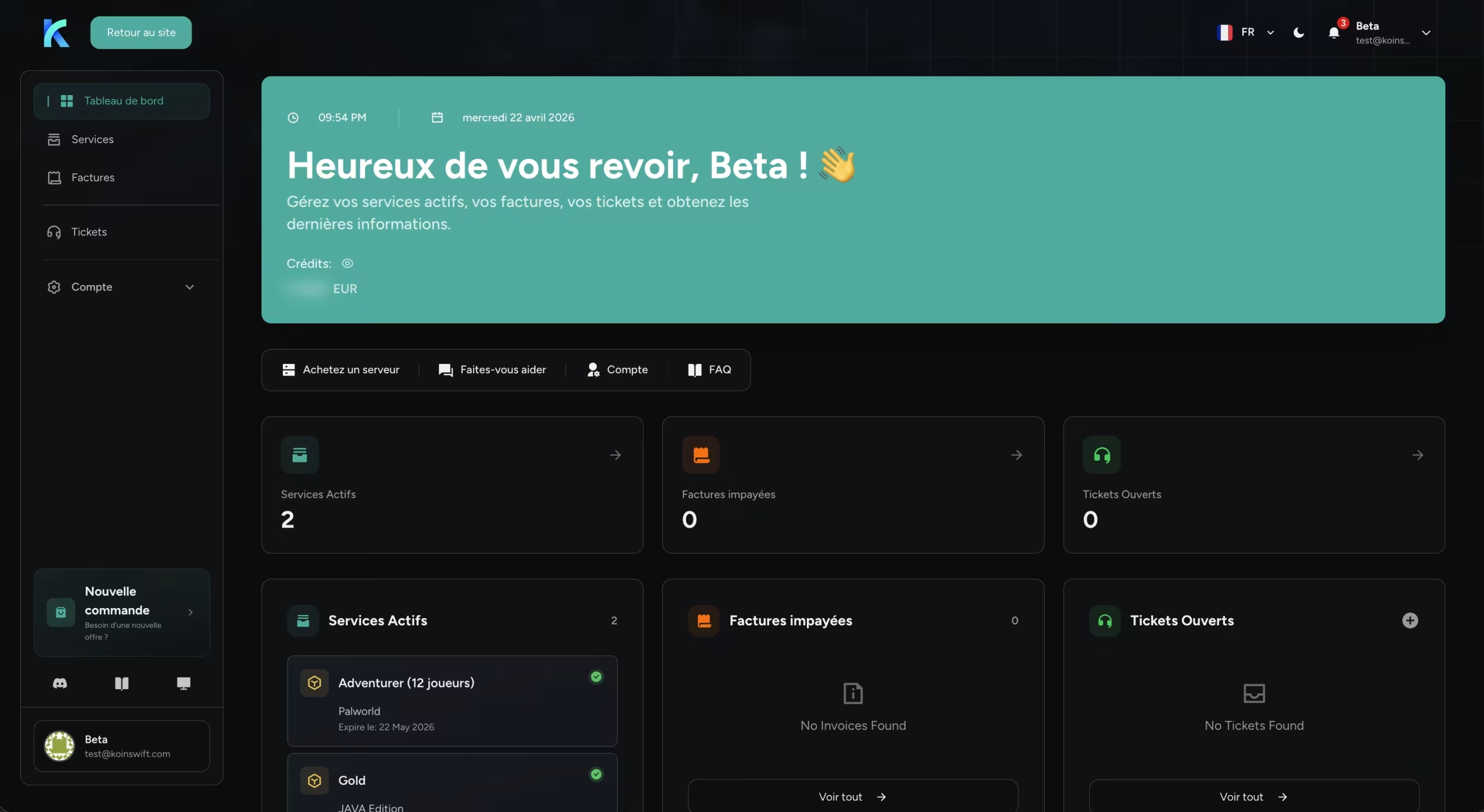
Once logged in, you land on the dashboard. This page gives you an overview of your account, including:
- the number of active services;
- any unpaid invoices;
- open support tickets;
- the main navigation sections such as Dashboard, Services, Invoices, Tickets and Account.
Tip: if you’re not logged in yet, you’ll be redirected to the login page. Use your Koinswift email address and password. If you’ve forgotten it, the reset link will let you quickly regain access to your account.
2. Finding your subscription in the Services section
Once in your customer area, click Services in the left menu. You then access the full list of all products linked to your Koinswift account. This is where you find your active, suspended, pending or cancelled subscriptions.
Each service has a status that lets you quickly understand its situation:
- Active: the server is working and the subscription is ongoing.
- Pending: the service has just been ordered and is being activated.
- Suspended: the service is no longer accessible, often due to a payment failure.
- Cancelled: the subscription has been terminated and won’t be renewed.
If you have several services, you can use search or filters to find the right subscription faster. This is particularly useful if you manage several games or servers under the same account.
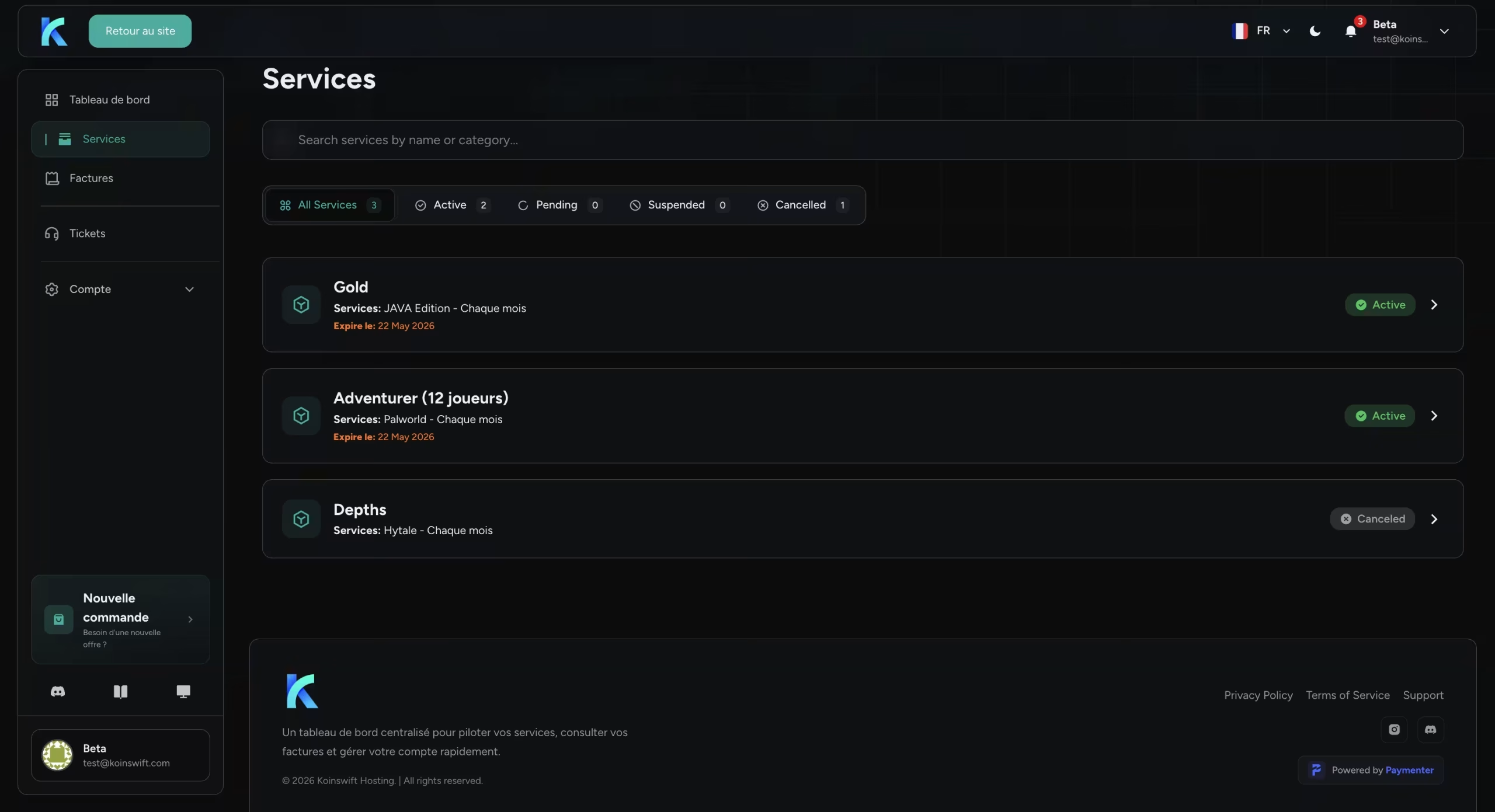
To open the detailed management of a subscription, just click the row of the service concerned. You then land on its full page.
3. Understanding your subscription information
A service’s detailed page brings together all the essential information about your subscription. It’s from this page that you can understand your current plan and access the main actions.
You usually find there:
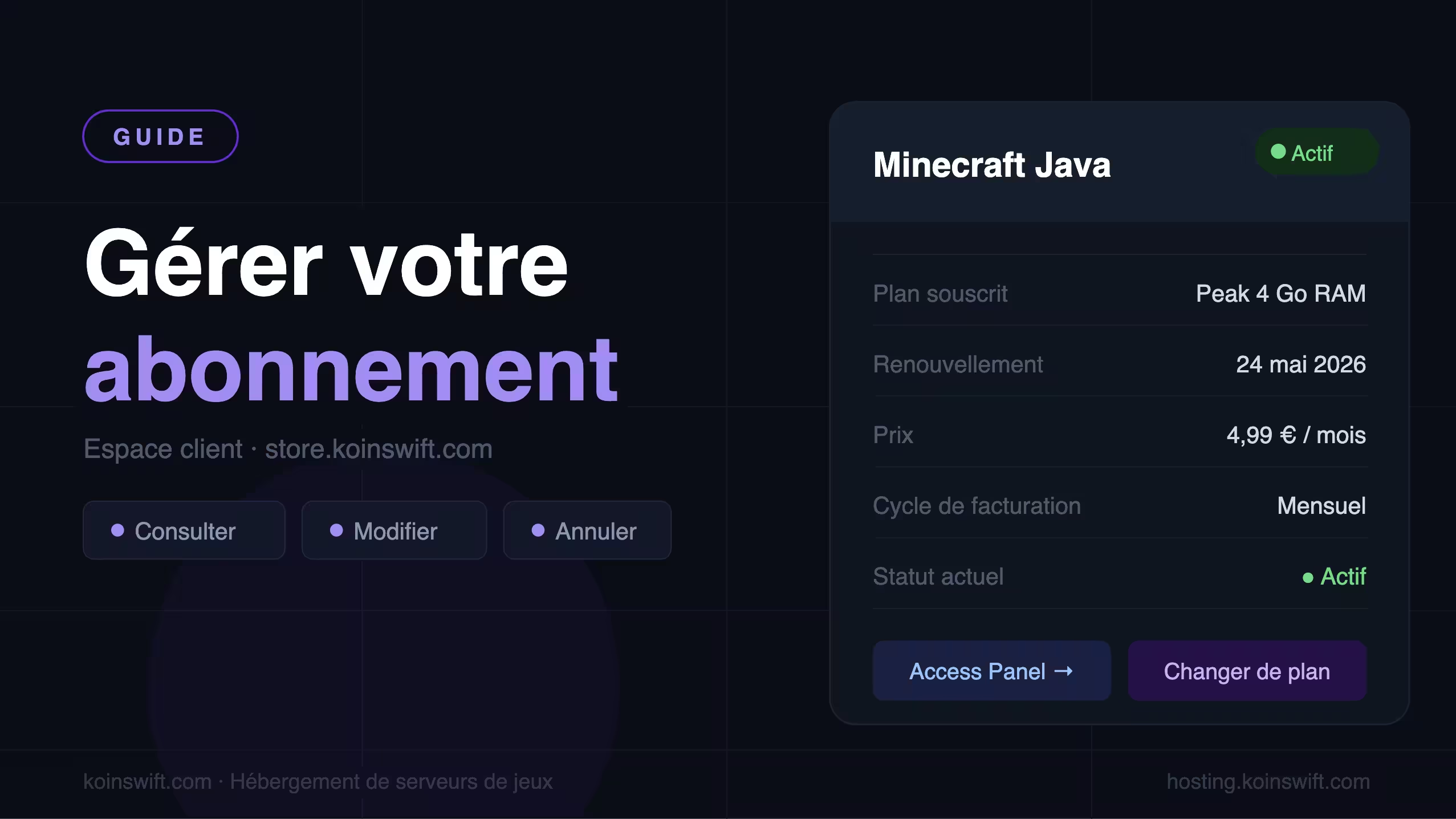
- the name of the plan subscribed to;
- the price of the subscription, monthly or per period;
- the billing cycle;
- the expiry or renewal date;
- the service status in real time.
Depending on the plan, several additional tabs or actions may also be available, such as displaying credentials, generating a new password or changing certain server-related settings.
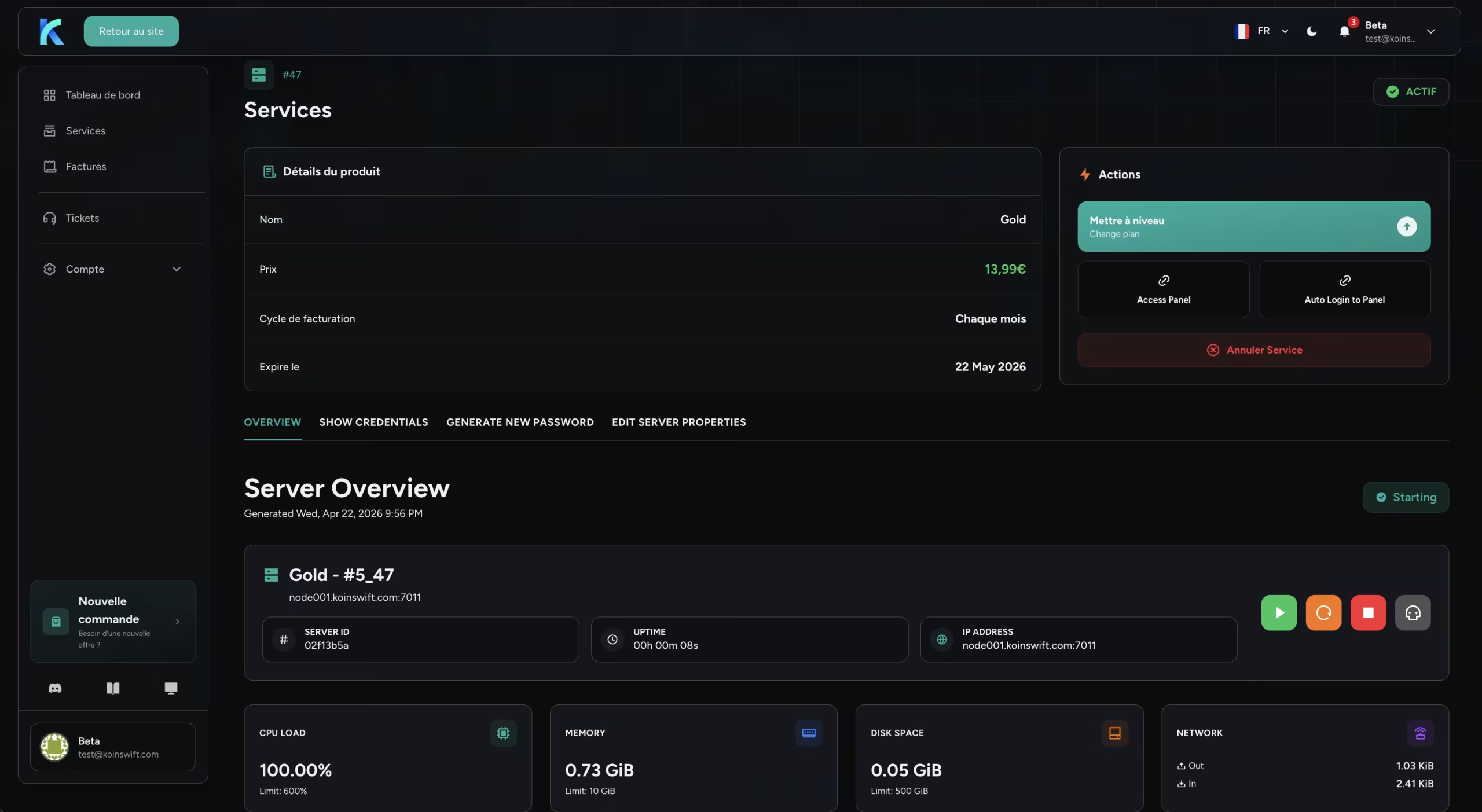
This page is the central point for managing your subscription. It’s also from this same screen that you can change plans, access the panel or request cancellation of the service.
4. Changing plans: upgrade or downgrade
If your server needs more resources, or conversely if you want to reduce your costs, you can change plans directly from your service page. This is done from the Actions block, usually on the right of the screen.
The Upgrade / Change plan button redirects you to the plans compatible with your current service. You can then select a more powerful or lighter plan according to your needs.
To choose the right plan, several factors need to be taken into account:
- RAM, particularly important on game servers;
- the number of players expected;
- the disk space needed for worlds, files and extensions;
- the type of server or game concerned.
Once the new plan is chosen, a summary shows the details of the change. Depending on the case, a prorated adjustment may apply when the change happens mid-period.
Good to know: with an upgrade, the extra amount may be prorated over the time remaining in your billing cycle. So you don’t necessarily start a new full month.
5. Accessing the server management panel
The Koinswift customer area is mainly for the administrative management of your subscription. To technically administer your server, you need to go through the management panel, accessible from your service page via the Auto-Login to Panel button.
The panel lets you manage your server concretely day to day. In particular, you can:
- start, stop or restart the server;
- access the real-time console;
- manage files and configurations;
- install or add plugins, mods or content depending on the plan;
- view resource usage;
- create and restore backups.
The panel is the tool to use for everything related to running the server directly, while the customer area stays focused on the subscription, billing and general service management.
Beginner tip: if you’re new to server administration, start with the console and basic file management. That already lets you carry out most everyday operations without touching more advanced settings.
6. Cancelling a Koinswift subscription
If you want to terminate a service, cancellation is done directly from the subscription page, via the Cancel Service button. You’ll be asked to confirm before it’s validated.
It’s important to understand that a cancellation doesn’t necessarily shut down the server immediately. As a general rule:
- the subscription is marked as cancelled;
- the server remains accessible until the end of the period already paid;
- once this period ends, the service may be suspended and then deleted.
Before cancelling, it’s strongly advised to make a full backup of your server, especially if you want to keep your world, plugins, settings or important files.
Important: before any cancellation, remember to download a backup of your server from the panel. Once the service is permanently deleted, the data can no longer be recovered.
If you’ve cancelled a service but the end date hasn’t passed yet, it may be useful to contact support to find out whether reactivation is still possible depending on the service’s exact state.
7. Frequently asked questions
How do I prevent a subscription’s automatic renewal?
You need to cancel the service before its expiry date. The subscription will then not be renewed for the following period.
I can’t find my server in the Services section anymore, what should I do?
First check that you’re logged in with the right account, then look at all statuses, not just active services. If the problem persists, open a support ticket.
Can I manage several servers under the same account?
Yes. All your services appear in the same Services section of your customer area.
How do I contact Koinswift support?
From the Tickets section of your customer area, you can create a support request and track its progress.
Can I switch games with my current subscription?
As a general rule, subscriptions are tied to a specific game. To host another game, you generally need to subscribe to a suitable plan.
💡 Key takeaway
From your Koinswift customer area, you can view your subscriptions, change plans, access your server’s management panel or cancel a service in a few clicks. For any more specific question, the Tickets section lets you quickly contact support.