


Create a schedule (automatic task)
Schedule commands, restarts or backups at set times.
A schedule automatically runs one or more tasks at a frequency you choose.
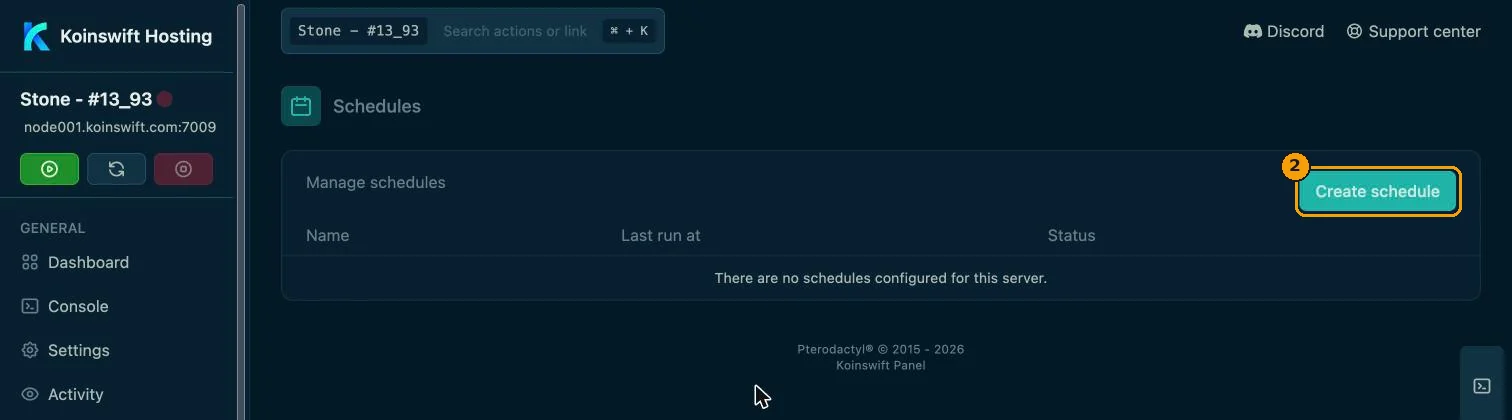
- Create the schedule
Schedules menu → Create Schedule.
- Name it and set the frequency
In easy mode, drop-down lists (minute, hour, day of month, month, day of week); a plain-language preview appears below. Advanced mode accepts a cron expression.
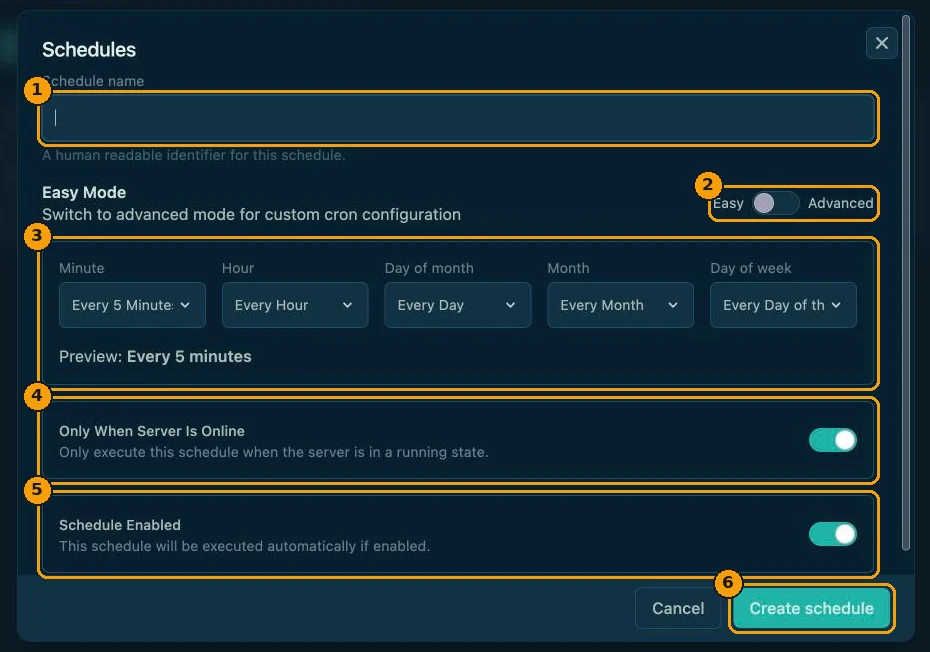
Name (1), mode (2), frequency (3), server-online condition (4), enabled (5), create (6). - Set the options
Only When Server Is Online: the schedule does not run if the server is stopped. Schedule Enabled: turn it off to prepare the schedule without running it.
- Add the tasks
Open the schedule, then click New Task.
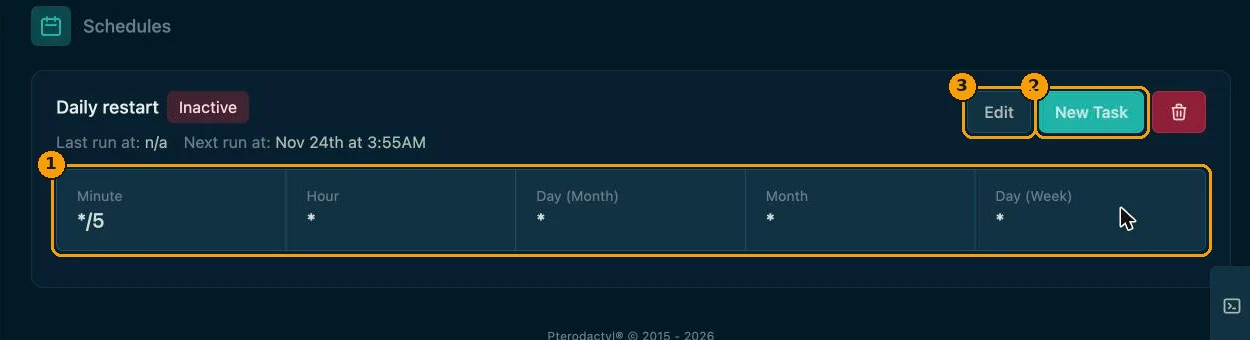
Frequency (1), New Task (2), Edit (3).
Task types
| Action | Example payload (content) |
|---|---|
| Send command | say Restarting in 5 minutes |
| Send power action | Start, restart, stop or kill. |
| Create backup | Files to ignore (optional). |
| Discord webhook | Sends a message to a Discord channel through a webhook. |
| Delete files | Deletes files (use with care). |
The time offset is the wait, in seconds, after the previous task. Continue on Failure runs the following tasks even if this one fails.
Need a hand?
The Koinswift team answers 7 days a week, by ticket from your client area or on Discord.