


Change your Minecraft server’s version
Switch to another Minecraft version from the Startup page, then reinstall without losing your world.
The server version is set in the variables on the Startup page. The variable’s name depends on the server type.
| Server type | Version variable |
|---|---|
| Vanilla | SERVER VERSION (latest, snapshot or a number) |
| Paper | Minecraft Version and Build Number |
| Fabric | Minecraft Version, Fabric Version, Fabric Loader Version |
| Forge | Minecraft Version, Build Type, Forge Version |
| NeoForge | Minecraft Version, NeoForge Version |
| Spigot | Minecraft Version |
- Make a backup
A version change, especially to an older version, can damage a world.
- Edit the variable
Startup page: enter the version you want (for example
1.21.1).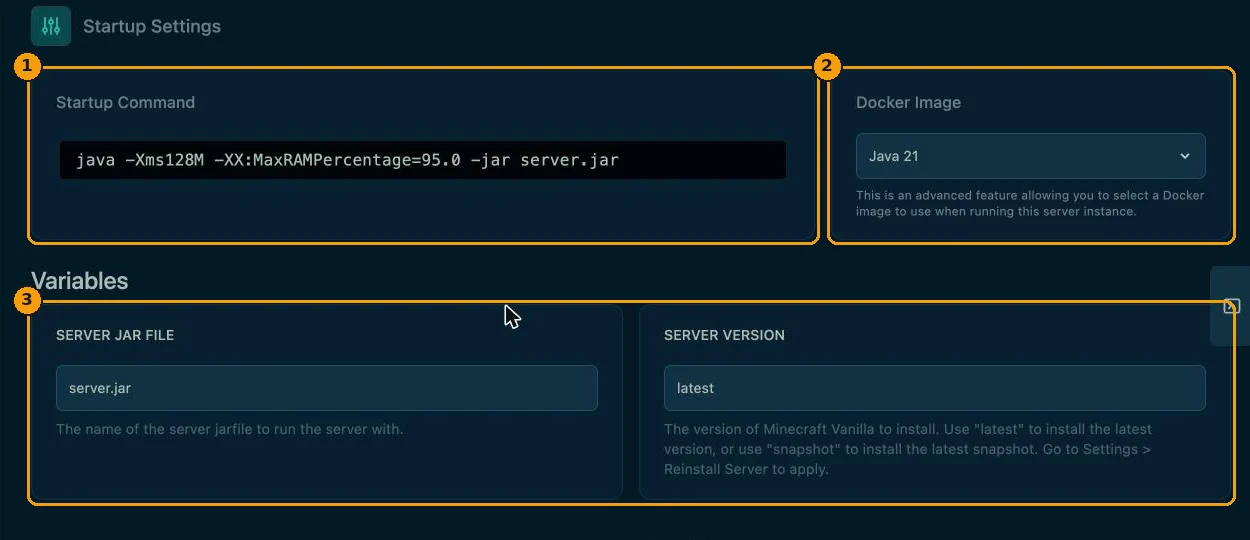
The variables (3), here the Minecraft Vanilla version. - Reinstall
Settings → Reinstall Server. The new server file is downloaded; your world and configuration are normally kept.
- Check Java
If the console shows
Unsupported Java Version, change the Docker image. - Start and check
Check the world, plugins and mods.
Going back to an older version is not supported by Minecraft: the world may be corrupted. Restore a backup made before the update instead.
Plugins and mods each have their own compatible versions: check them before updating the server.
Need a hand?
The Koinswift team answers 7 days a week, by ticket from your client area or on Discord.