


Automate your backups with a schedule
Create an automatic backup every day or every week.
A schedule runs tasks at set times. Combined with a “Create backup” task, it backs up your server without you having to think about it.
- Create the schedule
Schedules menu → Create Schedule. Name it “Daily backup”.
- Set the frequency
In easy mode, choose for example every day at 5 am. In advanced mode, the cron syntax
0 5 * * *means “every day at 5:00”.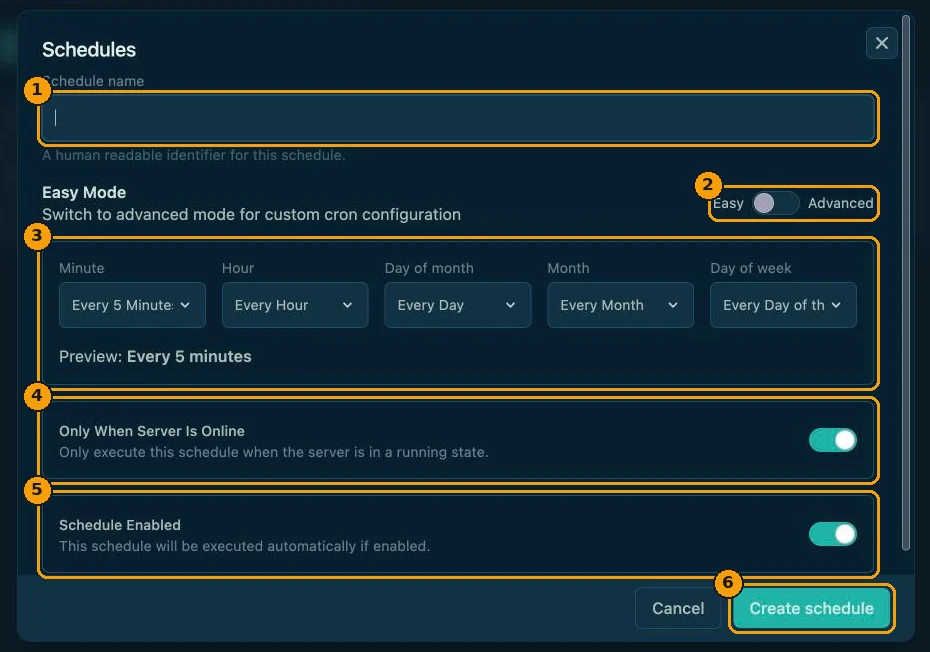
Name (1), easy/advanced mode (2), frequency (3), only when server is online (4), enabled (5), create (6). - Choose “Only When Server Is Online”
Turn this option off if you want a backup even when the server is stopped.
- Create the schedule
Click Create Schedule, then open it.
- Add the task
New Task → Create backup action. The Payload field can hold the list of files to ignore (same format as
.pteroignore).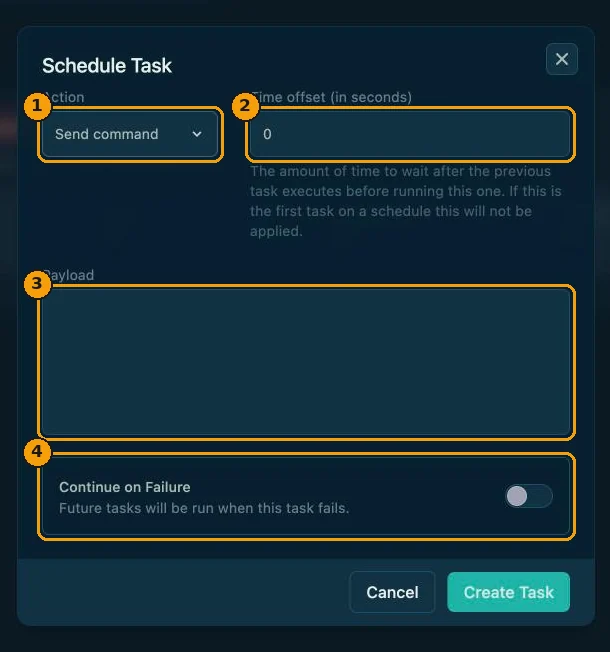
Action (1), offset (2), payload (3), continue on failure (4).
When your plan’s backup limit is reached, the oldest unlocked backup is replaced by the new one. Lock a reference backup so it is never replaced.
Choose an off-peak time (at night): creating a backup uses disk and a little processor time.
Need a hand?
The Koinswift team answers 7 days a week, by ticket from your client area or on Discord.