


Create a backup of your server
Make a full copy of the server in one click before an update or a major change.
A backup is a full copy of your server’s files at a given moment. It lets you roll back if something goes wrong.
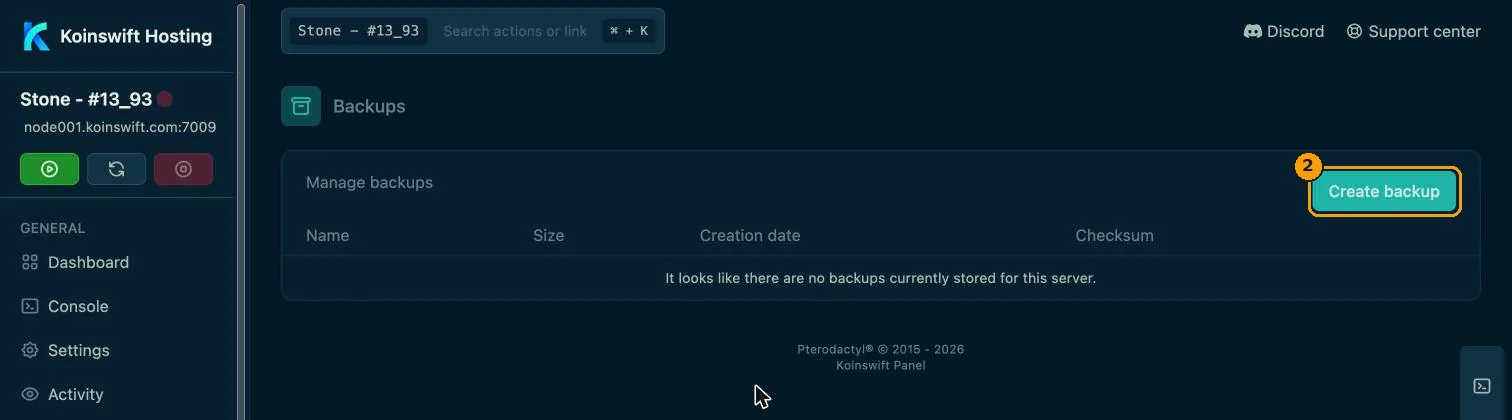
- Open Backups
Backups menu, Create Backup button.
- Name the backup
A clear name, for example “Before moving to 1.21”.
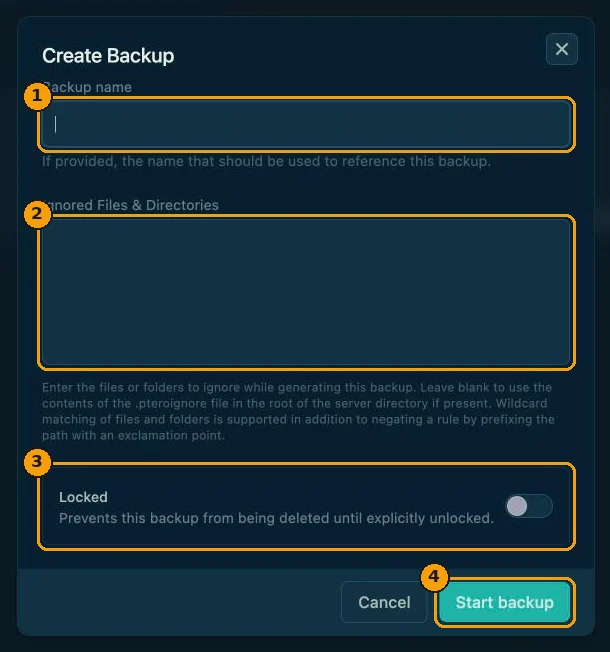
Name (1), files to ignore (2), lock (3), Start Backup (4). - Choose the options
Ignored Files & Directories: usually leave it empty. Locked: prevents the backup from being deleted until it is unlocked.
- Start it
Click Start Backup. A loading icon spins while it is created; the size and checksum appear at the end.
For a perfectly consistent backup, stop the server first, or send the game’s save command (Minecraft: save-all).
How many backups?
The number of backups stored depends on your plan. The counter under the title shows it (for example “1 of 2 backups”). Once the limit is reached, delete an old backup or let a schedule replace the oldest one.
Need a hand?
The Koinswift team answers 7 days a week, by ticket from your client area or on Discord.